A file can deteriorate without any warning: a failing disk sector, an interrupted copy, a sync that writes over it. The only way to know is to read the file in full and compare its fingerprint with the one taken at import. This is what Vault calls a fixity audit.
Verifying integrity is free.
The Integrity screen

The Integrity screen (group Verify) shows:
- four tiles: the files that are Verified, Altered, Unverifiable and Never Checked, according to each one’s latest check. The four numbers always add up to the library’s total: a file never checked is never counted as verified;
- Audits: the date and result of the Last audit, the Next scheduled audit, and the Automatic library audit setting;
- By Project: each project’s state as badges (altered, not verifiable, never checked, verified) and one Verify button per project;
- Files to Examine: files that were altered or not verifiable at the latest check, with their project and the date of the check (altered ones first). The list shows the first 200; beyond that, a line under the list says how many there are in all;
- Archives: the latest verdict of each verified archive.
The meaning of each state is detailed in the chapter Understand the verdicts.
Run an audit
- Verify Library re-reads every file of every project.
- Verify, on a project’s line, re-reads only that project’s files.
A progress pill shows the running audit (“Library Audit — 412/1,280”). The ✕ button at the end of the pill (or Library › Stop Audit) stops it: files already read are recorded, but the audit does not count as finished (“Audit stopped. The files already read are recorded; the audit is still due.”).
Each re-read file adds a line to the fixity journal: its date, its result, the expected fingerprint and the observed one. This journal only grows: a new check never rewrites an old one, and the moment a file stopped conforming remains known.
A finished audit is recorded in the audit log (“Integrity audit finished”), and so is a failed one (“Integrity audit failed”).
Schedule an automatic audit
In the Audits card, set Automatic library audit:
- Never (default);
- Every Week;
- Every Month (every 30 days).
Vault checks whether an audit is due a few seconds after launch, then every hour while it stays open. A library never audited is due immediately. Only a complete library audit moves the deadline: a stopped or failed audit leaves the audit due, so that a problem never buys you a week of silence. An audit that could not read every file (a disconnected disk, an unreadable folder) is recorded as incomplete (“incomplete audit” in its summary): it does not move the deadline and Vault tries again the next day, not a week later.
The scheduled audit only runs while Vault is open. This setting is specific to this Mac.
As long as no audit is scheduled, the Dashboard offers one as soon as the library holds files: Audit Monthly sets the automatic audit to Every Month; Not Now hides the offer, and the setting stays in Integrity.
The dashboard
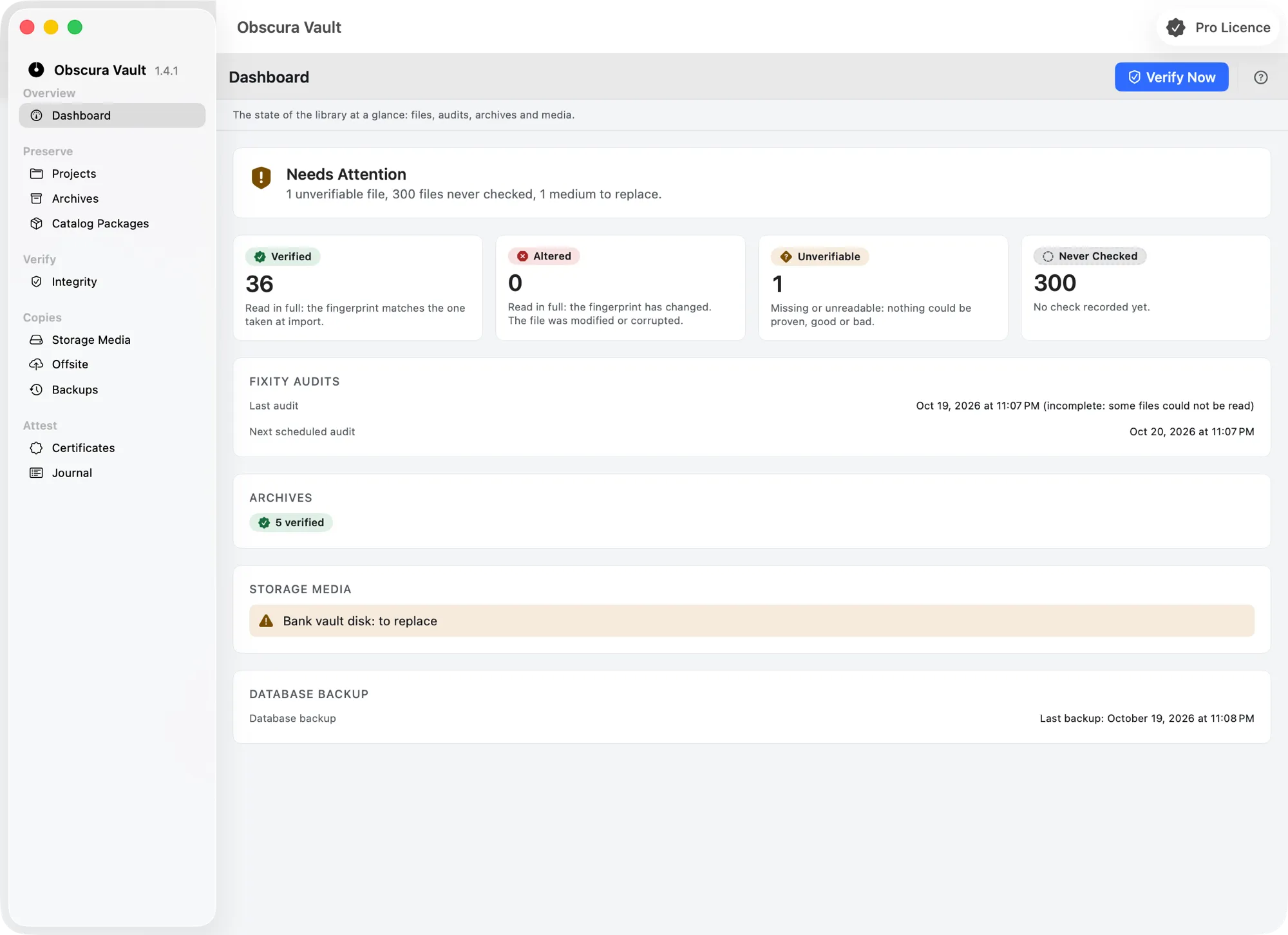
The Dashboard sums up the state of the library in one title:
- No Files to Watch: nothing has been imported yet;
- Everything Is Verified: every file has been re-read and is intact, no archive has failed, no medium needs replacing, and your copies exist: an active medium for each tier (N1, N2, N3), an archive sent offsite, a database backup less than 30 days old, the archive keys exported, a last complete audit that is not past its deadline;
- Needs Attention: files not verifiable or never checked, an archive not verifiable, a medium to replace, or one of the gaps above, each named in the message (“no storage medium declared”, “no offsite copy…”);
- Alteration Detected: at least one altered file or one failed archive. The message adds: “Restore from a healthy copy.”
Below: the four tiles, the Fixity Audits (last, next, and Verify Now, which starts a library audit), the verdicts of the Archives and the Storage Media to replace or the tiers with no active medium.
What to do with a file to examine
- Missing or Unreadable: the file could not be read. Reconnect its disk, check that it has not been moved or renamed, then rerun the project’s audit.
- Fingerprint Differs: the file has changed since the import. If it was modified on purpose, it is a new original (see Import a folder). Otherwise, it is corrupted: restore it from a verified archive (chapter 3) or an offsite copy (chapter 7).